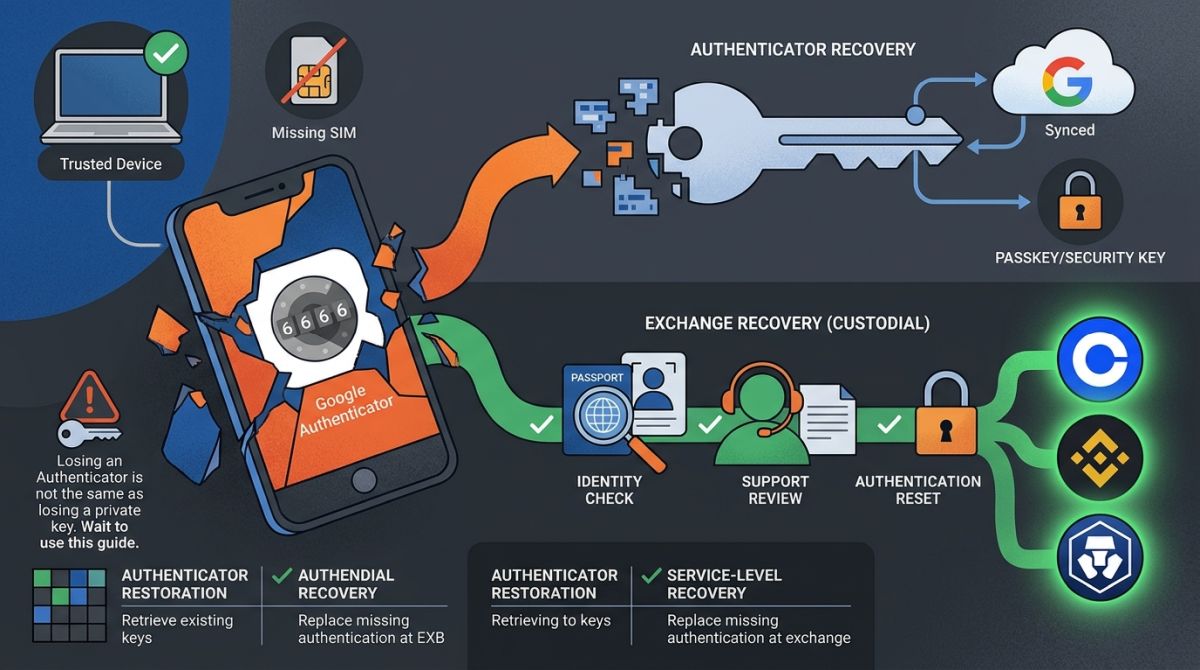
Losing your phone with Google Authenticator does not automatically mean losing your crypto. First, check for synced authenticator accounts, another registered passkey or security key, saved recovery codes, or the original authenticator setup key. If none are available, a custodial exchange may let you reset your authentication through its official account recovery process, usually with identity checks and possible withdrawal restrictions.
The distinction that matters is this: recovering an authenticator and recovering an exchange account are two different jobs. Google may be able to restore previously synced authenticator entries. An exchange may be able to replace a missing authentication method. Neither operation recreates a lost Bitcoin private key.
After 25 years in traditional banking, I approach this as an access-control incident, not a guessing game. First, contain the risk. Then identify what credentials still exist. Only then replace the broken part of the system.
That sequence matters most when the missing phone also contains your email, password manager, exchange apps, and wallet.
This guide covers Google Authenticator, Authy, passkeys, and recovery on Coinbase, Kraken, Binance, Binance.US, and Crypto.com. I also explain how to approach other exchanges without trusting an outdated tutorial or an impersonator posing as support. Fake support agents are among the most common traps I cover in my breakdown of 27 crypto scams and how to avoid them. Understanding where your crypto really lives on an exchange versus a self-custody wallet and why seed phrases remain a costly UX anti-pattern will also help you separate recoverable login credentials from irreversible cryptographic keys.
Documentation scope: I reviewed the official English-language guidance linked throughout this article. I did not initiate live account resets or submit identity documents. Recovery screens, accepted evidence, regional availability, and restrictions can change. Where a complete public recovery procedure was not available, I identify the official entry point rather than inventing a click-by-click process.
What to Do in the First 15 Minutes After Losing Your 2FA Phone
Your first priority is to prevent unauthorized access while preserving recovery options on devices you still control.
A phone destroyed in your kitchen is not the same incident as an unlocked phone stolen on the subway. The recovery options may overlap, but the security response should not.
1. Use a trusted device, and preserve your own working sessions
Move to a computer, tablet, or spare phone you control.
If you are already signed in to your email, password manager, or exchange on that device, do not immediately sign out, clear browser cookies, uninstall apps, or reset everything.
A working session can help you:
- Review account activity.
- Reach authenticated support.
- Locate security settings.
- Start an official lost-factor recovery process.
- Identify which recovery methods were already registered.
However, an existing session is not a guaranteed substitute for 2FA. Sensitive changes may still require a fresh authentication challenge.
Preserve sessions on devices in your possession. Revoke sessions on the missing device where the service provides that option. If you suspect active compromise, containment takes priority over keeping a convenient login alive.
2. Lock the missing phone through the device maker
For an iPhone, use the procedures in Apple’s lost-device instructions to locate it and activate Lost Mode. Apple explains that its Find Devices service can be accessed without a verification code, which is particularly useful when your missing iPhone was also your trusted device.
For Android, follow Google’s Find Hub instructions to locate, secure, or erase the phone when the required conditions are met.
Remote locking and erasing depend on device settings and connectivity. A pending erase request is not proof that the device has already been wiped.
For an iPhone, do not remove the stolen device from Find My simply because you erased it. Apple warns that doing so removes Activation Lock and makes the device easier for a thief to reuse or resell.
3. Contact your mobile carrier
Ask the carrier to suspend the missing SIM or eSIM and protect the account against unauthorized replacement or number porting.
If you retain the number, arrange a legitimate replacement SIM or eSIM.
This can restore access to SMS verification and may help with Authy registration. It does not restore Google Authenticator’s locally stored secrets.
Your phone number and your authenticator database are different things.
4. Secure the accounts that control everything else
I put these near the top of the list:
- Primary email.
- Google or Apple account.
- Password manager.
- Mobile carrier account.
- Crypto exchanges and financial accounts.
Review available security logs, registered devices, recovery addresses, forwarding rules, and authentication methods.
If the phone was unlocked, its passcode was exposed, or you see unfamiliar activity, assume more than the authenticator app may be at risk.
Changing a password can be necessary, but do not assume it automatically revokes every session, API key, passkey, or application authorization. Check the controls each service actually provides.
5. Lock or restrict exchange access if there are signs of compromise
If you see unauthorized logins, security changes, or withdrawal attempts, use the exchange’s official compromised-account or account-locking process immediately.
For example, Coinbase’s 2-step verification troubleshooting guidance directs users who do not recognize an authentication request to review their account and consider locking it.
Do not assume a security lock:
- Reverses a completed blockchain withdrawal.
- Cancels every open order.
- Revokes every API credential.
- Pauses margin requirements or liquidation.
- Stops interest, funding charges, or other contractual obligations.
A lost authentication device does not pause the market.
6. Do not destroy your last recovery option
If the phone is broken but physically secure, do not factory-reset it or uninstall the authenticator before checking whether its data can still be recovered.
A screen repair may preserve a functioning local authenticator. A factory reset will not.
If the phone is stolen and exposed, remote erasure may be the right decision even if it eliminates a possible recovery route. Protecting assets and identity comes before preserving an unsafe device.
Lost Phone and No Backup Codes: The Recovery Decision Tree
Even without backup codes, you may have another legitimate way back in, but you need to identify which system can restore access.
Work through these questions in order.
- Do you have another registered sign-in method?
- If yes, use that method through the official website or app. It might be a spare security key, a passkey on another device, or another authentication option already enabled on the account.
- If no, continue.
- Do you have an unused recovery code for that specific account?
- If yes, enter it only into the service’s official recovery or sign-in screen.
- If no, continue. A recovery code for Google does not recover Coinbase, and a Coinbase code does not recover Kraken.
- Were your Google Authenticator entries synced before the phone disappeared?
- If yes, install the official app on a trusted replacement device and sign in inside Authenticator with the same Google Account.
- If you cannot access that Google Account, recover the Google Account first or pursue the exchange’s recovery process separately.
- If sync was not enabled, continue.
- Did you use Authy with encrypted backups?
- If yes, you need an authorized Authy installation and the backup password to decrypt ordinary backed-up authenticator accounts.
- If you have lost all authorized installations, Authy’s recovery or phone-number-change process may be needed first.
- If there is no usable backup, continue.
- Did you save the original authenticator setup key or a legitimate export backup?
- If yes, import it into a compatible authenticator, using the correct settings.
- If no, continue.
- Do you still have the old device, and can it be unlocked?
- If yes, transfer the authenticator accounts or use the working device to register replacement authentication.
- If no, continue.
- Are you still signed in on a device you control?
- If yes, inspect security settings and start the service’s official lost-factor process from that session.
- Do not assume the session will let you remove 2FA without additional verification.
- If no, continue.
- Have all working factors, codes, and backups been exhausted?
- For a custodial exchange, start its official account recovery process.
- For Google or Apple, use that provider’s account recovery process.
- For a conventional self-custody wallet, look for the wallet’s recovery phrase, private-key backup, or other recovery mechanism. Exchange identity verification is not a substitute.
The critical point is that “I have no backup codes” does not necessarily mean “I have no recovery path.”
But if the only copy of a locally stored authenticator secret is gone, the app provider cannot simply generate it again from your name or email address. The protected service must replace the old authentication binding through an authorized recovery process.
What Did You Actually Lose: A Login Factor or a Wallet Key?
A missing exchange authenticator usually creates an account-access problem; a missing self-custody private key can create a fundamentally different recovery problem.
Before doing anything irreversible, identify where the assets are held.
| What you are trying to access | What the phone may contain | Who can authorize recovery |
|---|---|---|
| Custodial exchange account | Login credentials, sessions, and authentication factors | The exchange, under its recovery rules |
| Conventional self-custody wallet | A local copy of private keys or a recovery phrase | You, using the required recovery material |
| Wallet with social, MPC, or provider-assisted recovery | One component of a broader recovery arrangement | The parties and mechanisms specified by that wallet |
| Exchange-branded Web3 wallet | Potentially self-custody keys, despite the exchange branding | The wallet’s actual recovery design, not necessarily exchange support |
When I look at a custodial exchange, I see something familiar from banking: an institution maintains the customer relationship, account records, and an internal ledger. Replacing an authentication method does not itself delete the account balance.
But that institution also controls the recovery decision. Identity verification, compliance restrictions, and account status still matter.
Bitcoin’s base layer works differently. It validates authorized signatures, not passports. A support agent cannot instruct the Bitcoin network to disregard a missing private key.
The brand on the app is not enough to determine which model applies. A company can operate both a custodial exchange and a separate self-custody wallet.
Recovery codes, setup keys, and wallet seed phrases are not interchangeable
These items are often called “backup codes” in casual conversation, which creates expensive confusion.
| Item | What it does | Critical limitation |
|---|---|---|
| Current authenticator code | Approves a particular authentication challenge | Expires quickly and is not a durable backup |
| Service recovery code | Provides a service-specific fallback | Often single-use and valid only for that account |
| Authenticator setup key | Recreates an ordinary TOTP authenticator entry | Remains sensitive until the service replaces that secret |
| Authenticator export QR code | Transfers one or more authenticator secrets | Anyone who obtains it may be able to clone those entries |
| Authy backup password | Decrypts eligible Authy backups | Does not independently prove ownership of an exchange account |
| Passkey | Authenticates using a cryptographic credential | Recovery depends on its storage provider or another registered method |
| Wallet recovery phrase | Restores keys for a compatible wallet arrangement | Does not reset an exchange’s 2FA |
A screenshot of a six-digit code is not a recovery plan. A screenshot of the setup QR code is much more powerful, and therefore much more dangerous.
How to Recover Google Authenticator After Losing Your Phone
Google Authenticator recovery depends on whether the authenticator entries were synced, exported, or otherwise backed up before the phone was lost.
The old blanket statement that “Google Authenticator has no cloud recovery” is outdated.
At the same time, installing the app on a new phone does not magically restore entries that existed only on the old phone.
If your Google Authenticator accounts were synced
According to Google’s current Authenticator documentation, signing in to the same Google Account inside Authenticator on a new device automatically syncs the saved entries.
Use this sequence:
- Install Google Authenticator from the official app store.
- Open the app on a trusted device.
- Sign in with the Google Account that held the authenticator entries.
- If you use multiple Google Accounts, check the correct account inside the app.
- Confirm that the expected exchange entries appear.
- Try a fresh code on the exchange’s official sign-in page.
Being signed in to Google somewhere on the phone does not prove that your authenticator entries were saved to that account.
Also, a missing entry does not automatically mean it was deleted. It may have been stored under another Google Account, or kept locally without account sync.
Do not randomly delete entries or toggle storage settings while investigating. Google states that deleting a synced Authenticator entry deletes it from the other devices where that entry is synced.
If Google asks for the code stored on your missing phone
This is the recovery loop:
- You need Google access to restore Authenticator.
- Google asks for a second factor.
- That second factor was on the missing phone.
The solution is an independent Google recovery method.
Google lists alternatives in its lost-phone and 2-Step Verification guidance, including another signed-in phone, a previously saved backup code, a registered security key, or a passkey available on another device.
A trusted computer may also help, depending on its existing session and the account’s security requirements.
If none are available, follow Google’s official account recovery process. Do not assume it will be immediate or successful in every case.
You can also pursue the exchange’s recovery procedure independently. Recovering your Google Account is one route to restoring synced codes, not necessarily the only route to recovering an exchange account.
If you used Google Authenticator without a Google Account
If the app was used locally, the phone is permanently unavailable, and no usable export or original setup secret exists, there is no general Google-based restoration route for those entries.
Your replacement SIM does not contain them.
Your Google password does not recreate them.
Knowing the exchange account’s email address does not regenerate them.
You must recover access separately at each protected service and replace its missing authentication method.
This is why I distinguish authenticator restoration from service-level recovery. The first retrieves an existing secret. The second persuades the service to retire the old secret and enroll a new one.
If the old phone still works
Google’s manual transfer process requires the old device.
In the current app, the process involves exporting selected entries from the old device and importing the resulting QR code or codes on the new device. Google describes the required sequence in its Authenticator transfer instructions.
A safe migration looks like this:
- Keep both devices physically under your control.
- Export the intended entries from the old phone.
- Import them on the new phone.
- Verify that the expected account labels appear.
- Test actual sign-ins before wiping the old device.
- Review whether any credentials need replacement because the old device was exposed.
Do not send the export QR code through ordinary email, a public chat, or an online QR-decoding website.
It is a package of authentication secrets, not a harmless image.
If you saved the original setup key
For an ordinary TOTP account, a compatible authenticator can generally recreate the entry from the original secret and matching configuration.
Check that you are using:
- The correct secret for the correct account.
- A time-based entry rather than a counter-based entry, unless the service specifies otherwise.
- The correct code length and timing configuration.
- A label that distinguishes it from other accounts.
Adding a new entry with the same account name is not enough. The underlying secret must match what the service currently expects.
If the exchange already reset your 2FA, the old setup key may no longer work.
Do not assume a full phone backup contains your authenticator
A device backup and an authenticator backup are not automatically the same thing.
Whether app secrets survive a device restore depends on the app, operating system, backup mechanism, encryption, and original settings.
Unless the authenticator’s documentation explicitly supports the restoration method, or you have tested it safely, treat an ordinary phone backup as a possibility to investigate, not a guaranteed solution.
How to Recover Authy After Losing Your Phone
Authy recovery has two separate requirements: authorization to use the Authy account and the ability to decrypt the backed-up authenticator data.
That distinction is easy to miss under pressure.
You may successfully install Authy and verify your number, yet still be unable to unlock the backed-up entries because you do not know the backup password.
If another authorized Authy installation still works
Start there.
A working second device can preserve access to your codes and help you manage your account.
Do not uninstall that installation, reset it, or remove it while troubleshooting the missing phone.
Use the working device to:
- Confirm which accounts are available.
- Check the relevant backup and device settings.
- Authorize a replacement installation where supported.
- Verify that the new installation can access the necessary entries.
- Remove the missing device through the appropriate account controls.
- Replace exposed service-level authentication secrets when necessary.
Twilio’s current Authy installation guidance recommends configuring Authy on more than one device and then disabling additional installations through the Multi-Device setting after the intended devices are configured.
For a practical backup, I prefer a supported spare phone or tablet that is not carried in the same bag as the primary phone.
If you still control your Authy phone number
Install the official app and follow its enrollment prompts.
You may need approval from an existing installation or another permitted verification method.
If you cannot access Authy on any device and normal enrollment cannot proceed, the official Authy access recovery form provides a recovery route for users who still control their Authy number.
At the time of review, the form states that:
- Recovery requests take 24 hours to review.
- Existing Authy installations will stop working after the recovery.
- Backed-up accounts are retained.
- Entries that were never backed up can be lost.
- The backup password cannot be recovered or reset through that request.
That last point is the one I would underline twice.
Recovering the Authy account does not decrypt a backup whose password you have forgotten.
If you also lost access to the old number
If another Authy installation works, use the in-app phone-number-change process where available.
Otherwise, the official Authy phone-number-change form describes a separate process. The form currently states that approval can take two to four days and that additional information may be requested.
Do not confuse this with the 24-hour review described for the access recovery request.
They address different problems.
Also, do not change your Authy number merely because one SMS is delayed. First determine whether you actually lost control of the number or are experiencing a delivery problem.
If you forgot the Authy backup password
Twilio explicitly distinguishes the backup password from the local application PIN in its Authy password and PIN documentation.
The backup password protects the encrypted authenticator backups. The local PIN or biometric lock protects access to the app on a particular device.
They are not interchangeable.
If all usable devices are gone and you cannot supply the backup password, Authy Support cannot decrypt those backups for you.
If a working installation still displays valid codes, preserve it. You may be able to use those codes to replace authentication at the protected services.
If no working codes or decryptable backup remain, recover each exchange account through that exchange’s official process.
Why Authy’s phone-number registration does not make it “just SMS 2FA”
Authy may use a phone number during account registration and device authorization, while generating authentication codes locally for protected services.
Those are different layers.
A replacement SIM may help establish access to the Authy account, but the encrypted backup password still matters. Conversely, a strong backup password does not eliminate every risk associated with a compromised phone number or an exposed authorized device.
I treat the number, device authorization, backup encryption, and exchange recovery procedures as separate controls.
How to Recover Passkeys When Your Phone Is Lost
A lost passkey is recoverable only if another usable copy exists or the service permits an alternative recovery method.
“Passkey” describes an authentication technology, not one universal backup arrangement.
The FIDO Alliance’s passkey guidance distinguishes synced passkeys from device-bound passkeys. That distinction determines what happens when hardware disappears.
Synced passkeys
A synced passkey may become available on another device after you restore access to its credential provider.
Examples include:
- Apple Passwords and iCloud Keychain.
- Google Password Manager.
- A third-party password manager that supports passkeys.
The replacement device must be able to access the relevant encrypted credential store.
For example, Google’s passkey management documentation explains that Google Password Manager passkeys are backed up and synced, but using them across devices can require a Google Password Manager PIN or the relevant Android device’s lock-screen credential.
Signing in to the cloud account and unlocking its encrypted passkeys are related, but not always identical, steps.
For Apple-stored credentials, follow the provider’s current requirements in its secure iCloud Keychain recovery documentation, rather than assuming the Apple Account password alone is sufficient.
Device-bound passkeys and hardware security keys
A device-bound credential does not automatically reappear on a replacement phone.
If the only usable credential was stored on a missing phone or security key, you need another registered credential or the service’s recovery procedure.
A second hardware security key helps only if you enrolled it before the incident.
Buying a replacement key does not make it a copy of the missing key.
Likewise, most security-key recovery is not based on a Bitcoin-style recovery phrase. Do not assume your crypto wallet’s seed phrase can reconstruct a FIDO security credential.
A hardware wallet and a hardware security key serve different purposes, even when a particular product supports more than one function.
A QR sign-in screen does not recover a missing phone
Cross-device passkey authentication can let a nearby phone approve a login on a computer.
It does not conjure a missing passkey out of a QR code.
If the flow expects the lost phone to scan the code and approve the request, you still need another authentication route.
Be careful when removing a synced passkey
Several devices may hold copies of the same synced credential.
Revoking that credential at the exchange can invalidate all of those copies, not just the copy on the missing phone.
Where it is safe to do so, enroll and test a genuinely separate credential before removing the old one. If the credential is compromised, do not preserve it merely for convenience.
Also review the credential provider’s device access. Revoking an exchange passkey and removing a stolen device’s access to the cloud account solve different parts of the incident.
Passkeys are not always an extra step after a password
Some services use passkeys for passwordless sign-in. Others use them as an additional authentication method.
When the service requests appropriate user verification, a passkey can combine possession of a cryptographic credential with a local PIN or biometric check.
The fingerprint or face check normally unlocks credential use locally. It is not a photograph of your fingerprint being sent to the exchange.
How Major Crypto Exchanges Handle Lost 2FA
Custodial exchanges can often replace a missing authentication method, but approval, timing, and withdrawal restrictions are platform-specific.
Before following any instructions, confirm the exact product and legal platform.
Binance and Binance.US are different services. The Crypto.com App, Crypto.com Exchange, and Crypto.com Onchain are not interchangeable recovery targets.
Here is the practical comparison based on the public guidance reviewed.
| Platform or product | Verified starting point | Published timing or restriction |
|---|---|---|
| Coinbase | Account recovery, including ID-based recovery where offered | ID recovery described as taking up to 24 hours; sending may be restricted for 24 hours afterward |
| Kraken | Another sign-in method, Master Key, or Recover account at the 2FA prompt | No universal completion time established from the reviewed sign-in guidance |
| Binance global | Official security settings for a normal change; official recovery or support when the existing challenge cannot be completed | Changing the authenticator can disable withdrawals, internal transfers, and P2P transactions for up to 48 hours |
| Binance.US | Authenticator Issues at the sign-in challenge, followed by the official reset flow | Typical review of 48 to 72 hours and a stated 48-hour withdrawal hold after reset |
| Crypto.com App | Settings, Security, 2-Factor Authentication, then Reset 2FA | Verification depends on available passkey or existing credentials; no universal completion time stated in the reviewed App instructions |
| Crypto.com Exchange | Support-led recovery when the authenticator and saved setup key are unavailable | Exchange documentation warns withdrawals may be disabled for 24 hours after disabling 2FA |
These figures are published descriptions, not personal guarantees.
An account compromise investigation, document mismatch, compliance review, regional restriction, or technical problem can create additional steps.
Coinbase: Recover access and update 2FA promptly
Coinbase provides a specific account recovery procedure for lost email or 2-step verification access.
If you cannot sign in:
- Start the official account recovery process.
- Enter your account email address and password.
- If necessary, reset the password first, as directed.
- Choose an available recovery option.
- For ID-based recovery, complete the document capture and any requested selfie.
- Follow the remaining prompts until you regain access.
- Update the 2-step verification method within the required period.
Coinbase currently says the ID process takes up to 24 hours and that you may be unable to send funds for 24 hours after completion.
It also instructs recovered users to update their 2-step verification method within 24 hours to maintain access.
Do not treat recovery approval as the end of the job. Complete the authentication update.
If you are already signed in, Coinbase’s instructions provide a route through the 2-step verification settings under the lost-access option.
Coinbase also describes a trusted-contact recovery option where previously enabled. However, its published guidance says that this route does not allow you to update the email address or 2-step verification method after recovery and deletes previously added payment methods.
That is a meaningful limitation, not a small footnote. Do not assume every recovery option accomplishes the same thing.
For lost passkeys or hardware keys, distinguish recovering account access from restoring the missing credential. Coinbase cannot recreate your lost physical key.
Kraken: Try another method or a previously configured Master Key
Kraken’s current sign-in 2FA instructions explain that users can register multiple sign-in methods and use a Master Key as an alternative.
The order is:
- Sign in using another registered method, if available.
- Otherwise, select the Master Key option when prompted for sign-in 2FA, if you configured one previously.
- If neither works, select Recover account at the 2FA prompt.
- Complete the official recovery process or contact support through the verified site.
A Kraken Master Key is an account-security feature. It is not a Bitcoin master private key, a wallet recovery phrase, or a credential you can create retroactively after losing access.
Kraken’s Master Key documentation recommends keeping it on a different device from the normal sign-in factor.
That is sound operational design. A backup stored on the missing phone is not independent.
If you regain access through another method, replace exposed authentication methods and secure the associated email account.
Also remember that Kraken may distinguish sign-in authentication from other security functions. A code labeled for one purpose is not automatically valid for another.
I would not promise a universal Kraken recovery time from the public sign-in material reviewed. Follow the timing and restrictions attached to your actual case.
Binance global: Do not confuse a routine authenticator change with lost-factor recovery
Binance’s published Google Authenticator change procedure describes changing the authenticator through account security settings.
That normal procedure includes completing an existing 2FA challenge.
It is therefore not, by itself, a solution for someone who has lost every usable factor.
If you can still authenticate:
- Open the official account security settings.
- Find the authenticator management controls.
- Follow the change procedure.
- Enroll the replacement secret.
- Confirm the new code.
- Observe the displayed security restrictions.
Binance currently states that changing the authenticator can disable withdrawals, internal transfers, and P2P transactions for up to 48 hours.
If you cannot complete the existing authentication challenge:
- Use the official sign-in flow’s lost-factor or security-verification recovery option, if offered.
- If no applicable option is available, enter the official Binance Support Center through the legitimate website or app.
- Explain that the existing factor is unavailable, rather than requesting an ordinary authenticated change.
- Follow the identity and account-security checks presented for your account.
I am deliberately not presenting one fixed document checklist or completion time for every Binance recovery scenario. The verified routine-change article does not establish a universal lost-factor procedure.
The platform’s current recovery prompts control.
Binance.US: A separate reset process and separate timing
Binance.US provides its own two-factor authentication reset instructions.
For the mobile sign-in route, the published instructions begin with:
- Enter your username and password.
- At the 2FA screen, select Authenticator Issues.
- Choose I can’t access my Authenticator app anymore.
- Enter the verification code sent to the registered email address.
- Complete the remaining checks requested by the official flow.
If you cannot complete those steps, use the support options in the official Binance.US help center.
At the time of review, Binance.US states that reset requests typically take 48 to 72 hours for review and approval. It also states that resetting 2FA triggers a 48-hour withdrawal hold.
Do not automatically add or overlap those periods yourself. The account’s actual notifications and restriction status determine when the next action is available.
Binance.US says other functions, including trading and deposits, can remain available during the withdrawal hold. That does not mean you should send additional funds into an account whose recovery status you do not understand.
Institutional accounts are directed to support for assistance.
Crypto.com App: Use Reset 2FA, not instructions for a different product
The Crypto.com App reset instructions provide an in-app process:
- Open Settings.
- Select Security.
- Open 2-Factor Authentication.
- Select Reset 2FA.
- Complete verification using a configured passkey, where available.
- If no passkey is configured, follow the branch for whether the old 2FA credentials are still accessible.
- If the old credentials are unavailable, provide the app passcode and complete the requested identity verification.
- Enroll the replacement authenticator.
If you cannot access the app or complete the in-app process, use Crypto.com’s official support route.
The app passcode is not the authenticator code. Resetting one does not automatically solve the other problem.
Crypto.com also warns that resetting the App’s 2FA can affect the linked Exchange account’s 2FA settings. Review both products after recovery rather than assuming the other account remains protected.
Crypto.com Exchange: Saved setup key or support-led verification
Crypto.com’s Exchange authenticator setup guidance explains that a saved setup key can be used to recreate the authenticator entry.
If that key is unavailable and the authenticator cannot be used, its Exchange 2FA reset instructions describe contacting support.
The published procedure includes a video verification in which the customer shows the relevant identification, turns their head, states the date, and says a service-specific verification phrase.
Follow the instructions issued in your verified case. Do not send a reusable identity video to someone who approaches you on social media claiming to be an employee.
The Exchange documentation also warns that withdrawals may be disabled for 24 hours after disabling 2FA.
That is not a basis for promising that every Crypto.com App recovery finishes in 24 hours. Product, process, and restriction are different variables.
After a reset, enroll fresh authentication and check the security status of both the App and Exchange where applicable.
Gemini, OKX, and exchanges not covered by a verified step-by-step procedure
The same recovery framework applies elsewhere, but the menu labels and evidence requirements are not universal.
For Gemini, begin through the official Gemini Help Center and select the applicable account-access support route.
For OKX, the official U.S. support center exposes security tools including changing the authenticator and freezing an account. Whether an authenticated change tool can help depends on which credentials you still possess.
For any other venue:
- Confirm the exact regional platform and product.
- Open the installed official app or independently verified website.
- Look for lost authentication, unavailable security verification, or account recovery.
- Distinguish an authenticated settings change from a recovery request.
- Follow the live identity checks.
- Read the restriction notice before confirming a reset.
I would rather give you a verified entry point than a confident set of outdated clicks.
Also, recovery does not override eligibility rules, account closure policies, sanctions restrictions, or other legal limitations.
What Exchange Identity Verification Actually Proves
Identity verification lets an exchange evaluate an exception to normal authentication; it does not decrypt your missing authenticator.
This is the banking parallel I find most useful.
When a bank replaces a customer’s access credentials, it is not reversing encryption on the old card or PIN. It is deciding whether there is sufficient evidence to issue new access.
A custodial exchange is making a similar decision.
Depending on the platform and case, recovery may involve:
- Contact control: Can you access the registered email or another approved contact method?
- Identity matching: Does an acceptable identity document match the customer record?
- Liveness or selfie verification: Does the person presenting the document satisfy the required check?
- Account context: Do the available account details and activity support the request?
- Risk review: Is there evidence of compromise, inconsistency, or another reason for additional review?
- Credential replacement: Can the old method be retired and a new one enrolled?
- Post-recovery controls: Should transfers or sensitive changes remain restricted temporarily?
Not every exchange uses every step, and the exact risk logic is not normally public.
Prepare evidence, but do not send a pile of sensitive documents unasked
Have the following available privately:
- The account email or username.
- Your legal name as registered.
- A currently accepted identity document, if available.
- A replacement contact address, if the official process permits one.
- Relevant account records the service specifically requests.
- The approximate time and circumstances of the phone loss.
- Details of any suspected unauthorized activity.
- Existing support case numbers.
Upload documents only through the verified process. Some legitimate checks use an approved identity-verification provider, but that provider should be reached from the official recovery flow you initiated.
A stranger sending you a “verification partner” link is not equivalent.
Transaction IDs and deposit records may provide context, but many blockchain details are public. Possessing a transaction hash is not, by itself, conclusive proof of account ownership.
What if your ID is expired, your name changed, or you moved?
Ask the official support team what evidence it currently accepts for your situation.
Do not submit altered documents, invent account details, or assume an older guide’s checklist still applies.
A name change, expired document, or outdated customer record may require additional verification. There is no universal workaround that every exchange must accept.
What if you lost your email too?
Email recovery and exchange recovery may need to proceed separately.
Start with the email provider’s official process. If that cannot succeed, use the exchange’s lost-email or account-access route where available.
Coinbase, for example, addresses lost email access in the same official recovery guidance that covers unavailable 2-step verification.
Do not assume opening another exchange account transfers ownership of the old account or solves its authentication problem.
A support request template that does not expose secrets
A concise case description is more useful than ten emotional messages containing conflicting information.
Issue: Lost access to the authenticator on my primary phone.

Platform and product:
[Exact exchange, product, and applicable region]

Account identifier:
[Provide privately through the official support form]

Device incident:
[Lost, stolen, or damaged, with approximate date and time]

Registered email:
[Still accessible or unavailable]

Other registered authentication methods:
[Available or unavailable, without including secret codes]

Suspicious activity:
[Known details, or state that none has been identified]

Request:
Please direct me through the official lost-2FA recovery process
and explain any account or withdrawal restrictions.

I can provide requested evidence through your secure process.
Never include an authenticator setup secret, wallet recovery phrase, private key, or unused recovery-code list in the initial message.
Why Your Restored Authenticator Codes Might Still Be Rejected
A rejected code usually means the account, secret, clock, or authentication method does not match the service’s expectations.
Before starting another reset, check the basics.
Confirm that you restored the correct entry
Common mistakes include:
- Using an entry for another account on the same exchange.
- Selecting a Google Account’s own code instead of the exchange’s code.
- Choosing an old entry that remained after a previous reset.
- Confusing sign-in authentication with another security function.
- Assuming a familiar label proves the underlying secret is correct.
Labels are editable text. They are not cryptographic proof.
Check the device clock
TOTP uses time as an input.
Set the replacement device’s date and time correctly, preferably using the operating system’s automatic synchronization.
The important input is accurate absolute time, not merely the time-zone label shown on screen.
Google states in its current Authenticator guidance that the old in-app time-correction setting is no longer available in version 7.0. The app now uses the operating system’s time.
An old tutorial telling you to select “Time correction for codes” may therefore describe a menu you no longer have.
Use a fresh code and preserve leading zeros
Wait for a new code if the current one is about to expire.
Enter all digits exactly as displayed, including a leading zero.
Also verify that the page is requesting an authenticator code rather than an email code, SMS code, recovery code, or passkey approval.
These are different challenges.
Stop repeated attempts if the service is rate-limiting you
Repeatedly entering guesses can create a second problem.
Follow the service’s displayed retry instructions. If a correctly restored entry still fails after checking the clock and account, investigate whether the service already replaced the underlying secret.
Do not respond by deleting every authenticator entry and starting over.
How Google Authenticator and TOTP Work Under the Hood
An ordinary authenticator app generates codes from a shared secret and the current time; it does not retrieve each code from the exchange.
The algorithm is described in the IETF’s TOTP specification, RFC 6238.
Here is the lifecycle in practical terms:
- The service creates a secret. During setup, the exchange presents the secret through a QR code or manual setup key.
- The app stores that secret. The authenticator and the service now have the information needed to calculate matching codes.
- Time provides the moving input. Common deployments use short intervals, often 30 seconds.
- A keyed cryptographic calculation produces the value. TOTP builds on HMAC-based one-time passwords.
- The result is formatted for human entry. Six digits are common, although configuration can differ.
- The service checks the submitted code. It compares against its expected values and permitted timing window.
- The service applies additional controls. Appropriate implementations limit guessing and prevent inappropriate reuse of an accepted code.
This explains several things that otherwise feel mysterious.
The phone does not need mobile service to generate a code
Google confirms that Authenticator can generate codes without internet or cellular service in its official app documentation.
The phone needs the correct secret and sufficiently accurate time.
The website or exchange app still needs whatever connectivity is required to complete the login.
Replacing the SIM does not restore the secret
A SIM provides access to a mobile subscription.
It does not normally hold the authenticator database that Google Authenticator used on your phone.
That is why “I kept the same number” solves some SMS problems but not a locally stored TOTP problem.
A current code does not reveal the setup secret
A short-lived code is an output, not a complete backup.
You cannot generally reconstruct the secret from one remembered six-digit value.
The durable recovery material is the underlying secret, a supported backup of it, or the service’s ability to enroll a replacement after recovery.
TOTP is not phishing-resistant
A fake login page can ask for the same code as the real exchange.
An attacker can relay that code before it expires.
The short validity window helps against some attacks, but it does not bind your approval to the legitimate website in the way properly implemented FIDO authentication does.
The distinction is reflected in NIST’s current digital authentication guidance, which treats phishing-resistant authentication as a separate capability.
That is why I prefer properly configured passkeys or hardware security keys where the service supports them.
Exchange login authentication is not blockchain transaction signing
An exchange’s 2FA code usually authorizes an action within the exchange’s own system.
It is not your Bitcoin private key signing a transaction.
Resetting the exchange’s authenticator does not itself require a Bitcoin transaction, network confirmation, or blockchain fee.
A withdrawal hold after recovery is an exchange security control, not a slow block confirmation.
Restoring an Authenticator Is Not the Same as Securing a Stolen One
Restoration gives you another usable copy; rotation retires the old secret at the service.
This distinction is central to a safe recovery.
Suppose you restore a Google Authenticator entry from cloud sync.
You can now generate valid codes again. But if someone obtained the old secret, that person may also be able to generate valid codes.
Nothing about your successful restoration automatically changes what the exchange accepts.
For an ordinary TOTP account:
- Importing the same setup key restores the same authentication secret.
- Exporting and importing an entry copies the authentication secret.
- Deleting an entry from your app does not, by itself, disable that secret at the exchange.
- Replacing the secret through the exchange changes the authentication binding.
If the phone was stolen, unlocked, infected, or otherwise exposed, use the service’s supported process to replace the authenticator secret.
Removing a cloud session or remotely erasing a device can reduce risk, but neither should be treated as proof that a secret was never copied.
This is familiar territory in banking. Issuing a duplicate credential is not the same control as revoking a compromised credential.
What to Check Immediately After You Regain Access
Recovery is complete only after authentication, account activity, and recovery settings have been reviewed.
My post-recovery checklist is:
- Enroll and test the replacement authentication method.
- Confirm that the old exposed method is retired where appropriate.
- Review active sessions and registered devices.
- Check the account email, phone number, and recovery settings.
- Inspect withdrawal addresses and address-book changes.
- Review pending withdrawals, transfers, and recent account activity.
- Inspect API keys and third-party application access separately.
- Check for unfamiliar passkeys or security keys.
- Generate a fresh recovery-code set if the service provides one and the old set may be exposed.
- Record the exact withdrawal restriction and its stated expiry or next step.
- Review linked products that the reset may also have affected.
- Secure the email and credential-provider accounts associated with recovery.
Do not withdraw to an address supplied by “support.”
If you decide to move assets after recovery, independently verify the destination, network, and address. A rushed transfer to the wrong chain or a scammer’s wallet can turn a recoverable access problem into an irreversible loss.
How to Set Up 2FA So One Lost Phone Cannot Lock You Out Again
A resilient authentication setup has independent recovery paths that do not all depend on the same phone, cloud account, or password vault.
I do not want maximum complexity. I want failure isolation.
In banking terms, the goal is to avoid placing the operating credential, spare credential, and authority to issue replacements behind one broken control.
Secure the root accounts first
Your primary email, cloud identity, and password manager may control access to many other accounts.
Protect them before treating exchange security as a finished job.
Where supported, consider:
- A strong, unique password.
- A phishing-resistant primary authentication method.
- A separately stored spare security key.
- Current recovery information.
- Offline recovery material.
- A tested way to recover without the primary phone.
If Google Authenticator backups require your Google Account, but the only way into that Google Account is a code on the missing phone, you have built a circular dependency.
The same problem can arise with a password manager whose only recovery credential is stored inside that password manager.
Register two independent security keys where supported
For accounts that support multiple keys, I favor:
- A primary key for normal use.
- A separately stored spare key.
- Clear, nonsecret records showing which accounts each key protects.
Both keys must be enrolled with each relevant service.
Do not keep them on the same key ring.
And do not assume two registered keys create dual approval. They usually provide alternative ways to authenticate, not a requirement to present both keys.
Availability redundancy and multi-party authorization are different controls.
Understand what a weaker fallback still permits
Adding a hardware key does not necessarily disable:
- SMS recovery.
- Email-based recovery.
- Authenticator codes.
- Help-desk identity resets.
- Other registered passkeys.
The account’s practical security depends on every permitted route, not just the strongest credential you prefer to use.
This does not mean recovery should be eliminated. It means recovery deserves the same attention as normal sign-in.
Choose cloud-synced authenticator storage deliberately
Cloud sync can materially reduce the risk of losing every code with one device.
It also creates dependencies on:
- The cloud account’s security.
- Its recovery process.
- Access to the encrypted or protected credential store.
- The devices authorized to receive the data.
Google states that Authenticator codes are encrypted in transit and at rest in its official synchronization documentation.
That is a specific protection statement. It is not a reason to stop evaluating account compromise and recovery risk.
Likewise, Authy’s encrypted backups can help only if you preserve the backup password and can authorize a usable installation.
There is no universally best choice for every user. There is a bad choice: enabling a backup feature without understanding how to restore it.
Store recovery codes outside the primary phone
If the service issues recovery codes, save them somewhere that survives loss of the phone.
Reasonable options can include:
- A physically protected printed copy.
- A suitably encrypted offline backup.
- A reputable password manager with an independently recoverable account.
Avoid storing the only copy in:
- The missing phone’s photo gallery.
- An unencrypted notes app.
- An ordinary email draft.
- A cloud account you cannot access without the same missing factor.
Treat recovery codes as credentials. Do not publish them, send them to support, or leave them in shared folders.
Back up setup secrets carefully
A saved authenticator setup secret can provide useful recovery, but it is also a reusable copy of the factor.
For sensitive accounts, consider encrypted storage with a genuinely recoverable access method.
Do not casually photograph every setup QR code and let those photographs spread through cloud photo libraries, shared albums, and device galleries.
Also, do not upload a setup QR code to a random website merely to inspect its contents.
Decide whether passwords and TOTP belong in the same vault
Storing both in one password manager is convenient and can improve backup discipline.
It also concentrates risk. A sufficiently serious vault compromise may expose both the password and the authenticator secret.
Separating them can improve isolation, but only if the added complexity does not cause you to lose access or disable protection.
I assess that trade-off according to the account’s value, the user’s operational habits, and available stronger methods. “Separate everything” is not useful advice if the resulting system is impossible for the owner to maintain.
Test recovery without destroying the primary setup
A recovery plan is not tested merely because you remember creating it.
A safe test might include:
- Confirming that the spare security key can sign in.
- Checking that the backup authenticator displays the expected entries.
- Verifying that the backup password is available and correct through a supported check.
- Confirming that recovery materials are readable and current.
- Reviewing whether the recovery email and phone number still belong to you.
Keep the primary session and working factors intact while testing.
Do not disable the only working method to see whether recovery succeeds.
Before changing phones, follow a controlled migration
My phone-replacement sequence is:
- Inventory accounts and authentication methods.
- Confirm independent access to email and credential providers.
- Set up the new phone.
- Transfer or restore authenticators and passkeys through supported methods.
- Test actual sign-ins.
- Verify spare credentials and recovery materials.
- Review the old device’s sessions and credentials.
- Erase or retire the old device only after successful verification.
For high-value accounts, repeat this review after major security changes and periodically as part of ordinary account maintenance.
Recovery Scams That Target People Who Lost Their 2FA Phone
A recovery scammer cannot legitimately recreate a missing authenticator secret by asking you to send crypto, reveal a seed phrase, or connect a wallet.
People locked out of accounts are under pressure. Scammers know it.
Be especially suspicious of anyone who:
- Contacts you after you post about the problem.
- Claims to be exchange support in a Telegram or social-media direct message.
- Requests your wallet recovery phrase or private key.
- Asks for an authenticator setup QR code.
- Tells you to read out a login code during an unsolicited call.
- Promises to bypass a security hold for a payment.
- Directs you to move assets into a “safe,” “validation,” or “recovery” wallet.
- Asks you to install remote-control software.
- Requests a wallet signature, token approval, or transaction unrelated to a clearly verified process.
- Demands an identity video outside the support case you initiated.
A legitimate recovery process may ask you to enter a code on an official page. That is different from giving the code to a stranger who contacted you.
Likewise, an official process may request identity evidence. That does not make every request for a passport photograph legitimate.
Google explicitly warns in its account recovery guidance that it does not work with services claiming to provide account or password recovery support.
My rule is simple: independently open the official app or website, initiate the case there, and keep the recovery inside that verified process.
A blockchain “recovery fee” does not regenerate a lost TOTP secret or force an exchange to release a withdrawal hold.
Frequently Asked Questions About Lost Phones and Crypto 2FA
Most recovery confusion comes from treating different credentials as though they share one backup system.
Can I recover Google Authenticator without my old phone?
Yes, if the entries were previously synced to an accessible Google Account, or you have another usable backup such as the original setup secret.
Google’s manual export procedure requires the old device. It is not a solution when that device is permanently unavailable.
Can Google recover authenticator entries that were never synced?
There is no general account-based restoration route for entries that existed only on an unavailable device and have no usable backup.
For each protected account, use another registered method or the service’s official recovery procedure.
Will putting my old SIM into a new phone restore Google Authenticator?
No. Restoring a phone number does not restore locally stored authenticator secrets.
It may restore SMS verification and help with services that use the number during account or device authorization.
Can I recover an exchange account without backup codes?
Often, but not always.
Another registered passkey, security key, working authenticator installation, or saved setup secret may be enough. Otherwise, the exchange may offer identity-based recovery.
Approval depends on the platform, account, evidence, and applicable restrictions.
Can I use Google Account backup codes to unlock an exchange?
Not directly.
Google backup codes authenticate your Google Account. They may indirectly help you access Gmail or restore synced Authenticator entries, but they are not exchange recovery codes.
Can I switch from Google Authenticator to a different app?
For ordinary TOTP accounts, generally yes, provided you transfer the correct secret and compatible settings through a supported method.
Proprietary push approvals and some provider-specific tokens are not interchangeable with an ordinary TOTP entry.
Is an existing browser login enough to remove 2FA?
Not necessarily.
The service may require step-up authentication or identity verification before changing security settings. Preserve a useful session, but do not assume it bypasses the missing factor.
How long does exchange 2FA recovery take?
There is no universal answer.
Coinbase currently describes ID recovery taking up to 24 hours, with a possible additional sending restriction. Binance.US publishes a typical 48-to-72-hour reset review and a 48-hour withdrawal hold after reset.
Other cases may differ. Use the status and instructions for your actual request.
Does restoring Authenticator make the lost phone’s codes stop working?
Not by itself.
For ordinary TOTP, restoring the same secret creates another usable copy. Retiring the old secret requires a supported change at the protected service.
Are synced passkeys automatically available on any new phone?
No.
They depend on the credential provider, supported device, account access, and the ability to unlock the relevant credential store.
Device-bound passkeys do not automatically sync.
Can exchange support recover my self-custody wallet?
Not merely because the wallet and exchange share a company name.
For a conventional seed-based wallet, you need the required recovery material, including any additional passphrase or configuration the wallet uses. Wallets with other recovery designs must follow their own rules.
What if every recovery route fails?
Ask the official provider whether any approved escalation or alternative evidence process remains.
Do not assume someone selling “2FA bypass” services can solve what the provider cannot authorize.
For a conventional self-custody wallet with no usable key material or configured recovery mechanism, there may be no recovery route at all.
My Bottom Line: Build Recovery Before You Need It
The best 2FA setup protects you from attackers without making one lost phone a single point of failure.
If the phone is already gone, contain the risk, preserve your working sessions, and work through the legitimate recovery paths in order.
Do not confuse a replacement SIM with an authenticator backup. Do not confuse restoring a code generator with revoking a stolen secret. And do not confuse an exchange’s identity-based recovery authority with the ability to recreate a self-custody private key.
The lesson I carried from banking into crypto is that an access control is only as dependable as its exception process.
Set up the spare credential. Store the recovery material independently. Test it while you still have the primary device.
That is what turns the next lost phone from a financial emergency into an inconvenient afternoon.
Sponsored Partner: Volet.com
Looking for a simple, everyday way to buy, hold, and sell cryptocurrencies alongside your traditional currencies and payment cards?
- Read my full breakdown: Complete Volet Review on DoraMilen.com
- Get started right away: Open your free Volet account using my referral link